FreeCAD: Difference between revisions
Added the section for NibblerBOT |
|||
| (23 intermediate revisions by 5 users not shown) | |||
| Line 3: | Line 3: | ||
=== Installation === | === Installation === | ||
As of | As of March 31, 2026 the preferred version of FreeCAD to run will be the latest version found here - [https://github.com/Connor9220/FreeCAD/releases/latest https://github.com/Connor9220/FreeCAD/releases/latest]. This version is preferred because it includes support options for our CNC, NibblerBOT, that aren't available in other versions. FreeCAD is available to run on many platforms including LINUX, Windows, and MacOS. | ||
===== The installation of Unsigned Applications may require additional steps. ===== | |||
* MacOS installation note: You may need to run <code>xattr -d com.apple.quarantine /Applications/FreeCAD.app</code> before MacOS will let you launch FreeCAD. | |||
* Windows - various methods for Installing Unsigned Applications: | |||
** Change App Installation Sources (Windows 10/11): Go to Settings > Apps > Advanced App Settings (or "Apps & features") and change "Choose where to get apps" to Anywhere. | |||
** Enable Developer Mode: Navigate to Settings > Privacy & Security > For developers and enable Developer Mode to allow installation of apps from any source. | |||
** Use PowerShell for MSIX/Appx Packages: Run an elevated PowerShell and use Add-AppPackage -AllowUnsigned "C:\Path\To\App.msix" to install packages without a valid signature. | |||
Billy has put together a video on [https://www.youtube.com/watch?v=6GtQJIhNWR8 Installing and configuring v1.1.0CAM+ version of FreeCAD for CAM]. Beyond the installation of FreeCAD this video, as the name implies, covers suggested initial preference changes and helpful setup tips for FreeCAD. '''Note that it also covers the installation of the KM-FreeCAD Addon which is also documented in the NibblerBOT section below.''' | |||
=== Learning The Software === | === Learning The Software === | ||
| Line 19: | Line 28: | ||
For our CNC specifically, once you have a grasp of the basics of CAM and have completed the 101 authorization course, working 1-on-1 with a NibblerBOT guide (someone authorized to run the CNC solo) on your first couple of projects is the suggested method of gaining basic CAM proficiency on NibblerBOT. | For our CNC specifically, once you have a grasp of the basics of CAM and have completed the 101 authorization course, working 1-on-1 with a NibblerBOT guide (someone authorized to run the CNC solo) on your first couple of projects is the suggested method of gaining basic CAM proficiency on NibblerBOT. | ||
==== NibblerBOT | ==== CAM JAM Challenges ==== | ||
Configuration changes to FreeCAD necessary for it to work properly with NibblerBOT are accomplished through the installation of the | Introduced in June of 2026, CAM Jam Challenges are structured exercises that members can complete at their own pace. These challenges are rated by a Complexity Level and, more importantly, once completed you can validate the accuracy of your own work! More details and a history of challenges can be found on the [[CAM Jam Challenges|CAM Jam Challenges page]]. | ||
=== NibblerBOT === | |||
Configuration changes to FreeCAD necessary for it to work properly with NibblerBOT are accomplished through the installation of the '''KM-FreeCAD Addon'''. Once installed it will provide the ability to directly send your Post Process to our CNC, templates for quick setup of jobs, enable certain experimental features, and most importantly it integrates the NibblerBOT tool library with FreeCAD so it is always current and the tools are available for direct selection from within your jobs. | |||
If you have never had a version of FreeCAD earlier than 1.1.x installed on your computer you should be able to follow these steps to install the KM-FreeCAD Addon. | |||
# Add the custom KM-FreeCAD repository:[[File:GitHub Custom Repository.png|150x150px|thumb|Click to Enlarge]] | |||
#* Navigate to Preferences by selecting Edit -> Preferences from the menu. | |||
#* Select Addon Manager from the left menu in Preferences. | |||
#* Click on the '+' button. | |||
#* In the resulting popup window enter '<nowiki>https://github.com/KnoxMakers/KM-FreeCAD'</nowiki> in the Repository URL and 'main' in the Branch fields. | |||
#* Click on Apply, then OK to close the window. | |||
# Go to the Addon Manager by selecting Tools -> Addon Manager from the menu.[[File:KM FreeCAD.png|thumb|150x150px|Click to Enlarge]] | |||
#* Make sure your filter is set to 'Any, Any' and then type 'knox makers' in the search field. This should find the KM-FreeCAD Addon. '''If that doesn't work you may need to search for 'km' and select the KM-FreeCAD Addon.''' | |||
#* Select the Knox Makers FreeCAD Manager/KM-FreeCAD Addon and you should get a popup window with details on the Addon, click the Install button. Once installation is complete acknowledge the Success window that will pop up and Close the detail window. | |||
#* FreeCAD will prompt to Restart, select Restart Now. | |||
# Verify your installation | |||
#* Once FreeCAD has restarted, go to the CAM workbench. [[File:CAM and Library.png|thumb|150x150px|Click to Enlarge]] | |||
#** Verify you have the 3D Pocket, 3D Surface, and Waterline operations shown. It is fine that they are disabled, they will become enabled once you have an active Job. | |||
#** From the CAM Workbench, select CAM from the top Menu, then Toolbit Library Manager. | |||
#*** Verify you have a NibblerBOT library and available toolbits as shown on the right. ** This library is updated periodically, you are not looking for an exact match, just similar tooling. | |||
The KM-FreeCAD Addon should now be installed and your Toolbit Library should now stay synced with the NibblerBOT physical tool library. | |||
'''If you have ever had a version earlier than 1.1.x installed you should work with [https://talk.knoxmakers.org/knoxmakers/messages/@billy @Billy] on the initial installation of this Addon to ensure it has been configured properly.''' | |||
==== Usage: ==== | |||
# Select the NibblerBOT post processor when exporting G-code. | |||
# Use the provided job templates for quick setup. | |||
# Tool definitions and shapes are available under the Tools directory. | |||
=== Additional Addons === | |||
Besides the KM-FreeCAD Addon noted above, there are many other Addons that you may find helpful. Some of the ones that we've discussed in previous CAM Jam sessions are listed below. | |||
* OpenTheme - available directly from Addon Manager - Light and Dark themes for FreeCAD. | |||
* SaveAndRestore - available directly from Addon Manager - A simple addon to save and restore your settings. | |||
* SaveUtils - [https://github.com/jefe317/SaveUtils custom repository] - Adds 'Save As with Timestamp' and 'Save As Increment' to File menu. | |||
=== Feeds & Speeds === | |||
While there are various tools and calculators to give you a starting point, nothing beats real world experience. With that in mind a table has been started to capture operator feedback from NibblerBOT doing operations on different types of woods and using the various bits available. Check for previous operations that may be similar to one you're considering and of course please add your own results to help us all out!! If you have a KM account you can log in and edit, no special permissions needed. | |||
[[NibblerBOT Feeds Speeds|View/edit NibblerBOT Feeds & Speeds]] | |||
//////////////////////////////////////////////////////////////////// | |||
Latest revision as of 13:26, 20 June 2026
What is FreeCAD
FreeCAD is the preferred FOSS (Free and Open-Source Software) used at Knox Makers for CAD (Computer Aided Design) and CAM (Computer Aided Manufacturing). While you are always free to use other platforms you'll find that some of our devices are setup to integrate specifically with FreeCAD using add-ons & packages that have been designed in house to work with our devices. Additionally, peer support from other members will normally be easier to find if you are using FreeCAD versus other alternatives.
Installation
As of March 31, 2026 the preferred version of FreeCAD to run will be the latest version found here - https://github.com/Connor9220/FreeCAD/releases/latest. This version is preferred because it includes support options for our CNC, NibblerBOT, that aren't available in other versions. FreeCAD is available to run on many platforms including LINUX, Windows, and MacOS.
The installation of Unsigned Applications may require additional steps.
- MacOS installation note: You may need to run
xattr -d com.apple.quarantine /Applications/FreeCAD.appbefore MacOS will let you launch FreeCAD. - Windows - various methods for Installing Unsigned Applications:
- Change App Installation Sources (Windows 10/11): Go to Settings > Apps > Advanced App Settings (or "Apps & features") and change "Choose where to get apps" to Anywhere.
- Enable Developer Mode: Navigate to Settings > Privacy & Security > For developers and enable Developer Mode to allow installation of apps from any source.
- Use PowerShell for MSIX/Appx Packages: Run an elevated PowerShell and use Add-AppPackage -AllowUnsigned "C:\Path\To\App.msix" to install packages without a valid signature.
Billy has put together a video on Installing and configuring v1.1.0CAM+ version of FreeCAD for CAM. Beyond the installation of FreeCAD this video, as the name implies, covers suggested initial preference changes and helpful setup tips for FreeCAD. Note that it also covers the installation of the KM-FreeCAD Addon which is also documented in the NibblerBOT section below.
Learning The Software
CAD
For learning CAD a suggested resource is the Basic Beginners FreeCAD v1 (Public) by MangoJelly Solutions. This video series is current, specific to the updated interface that comes along with FreeCAD 1.x, and many members have expressed that it has been very helpful in their understanding and implementation of the software. It is suggested that you work through the lessons in a linear fashion regardless of your experience with FreeCAD. The early lessons in particular deal with setting up the interface and workbenches so that that mirror the instructor's layout which makes following along in your own copy of FreeCAD much easier. Additionally, this video series utilizes a building block approach where previously introduced tools and strategies are implements in later lessons. Going through in order will make reproducing the designs shown in the videos much easier to implement as they get more complex.
For those looking for written documentation, the FreeCAD Wiki is probably the most comprehensive resource and is intended for screen consumption. Most new users will likely want to start in the Users hub and progress from there. If you prefer a more linear, printer friendly version you can try ‘The Manual’ which contains the same information but formatted more like a book.
CAM
Learning CAM operations is a bit of a different animal. You’re going from creating virtual objects in the computer to actually manifesting these designs in the real world. The complexity increases significantly and there isn’t a ‘one stop’ solution to learning this process. Machines vary, materials vary, designs vary… and all of these affect each other in a dynamic fashion making CAM part process, part art. Because of this I’m not aware of a CAM video resource as comprehensive as the CAD videos by Mango Jelly linked above.
Having said that, one resource for the basics of CAM are the videos by Open Source CNC. The FreeCAD CAM 1.1 - Complete CNC video series is a work in progress but are relevant to how to do CAM in the latest stable release of FreeCAD. Not a specific playlist but if you look through his other videos you’ll find additional titles related to FreeCAD that may be beneficial.
For our CNC specifically, once you have a grasp of the basics of CAM and have completed the 101 authorization course, working 1-on-1 with a NibblerBOT guide (someone authorized to run the CNC solo) on your first couple of projects is the suggested method of gaining basic CAM proficiency on NibblerBOT.
CAM JAM Challenges
Introduced in June of 2026, CAM Jam Challenges are structured exercises that members can complete at their own pace. These challenges are rated by a Complexity Level and, more importantly, once completed you can validate the accuracy of your own work! More details and a history of challenges can be found on the CAM Jam Challenges page.
NibblerBOT
Configuration changes to FreeCAD necessary for it to work properly with NibblerBOT are accomplished through the installation of the KM-FreeCAD Addon. Once installed it will provide the ability to directly send your Post Process to our CNC, templates for quick setup of jobs, enable certain experimental features, and most importantly it integrates the NibblerBOT tool library with FreeCAD so it is always current and the tools are available for direct selection from within your jobs.
If you have never had a version of FreeCAD earlier than 1.1.x installed on your computer you should be able to follow these steps to install the KM-FreeCAD Addon.
- Add the custom KM-FreeCAD repository:
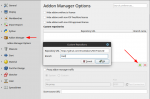
Click to Enlarge - Navigate to Preferences by selecting Edit -> Preferences from the menu.
- Select Addon Manager from the left menu in Preferences.
- Click on the '+' button.
- In the resulting popup window enter 'https://github.com/KnoxMakers/KM-FreeCAD' in the Repository URL and 'main' in the Branch fields.
- Click on Apply, then OK to close the window.
- Go to the Addon Manager by selecting Tools -> Addon Manager from the menu.
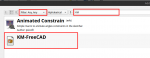
Click to Enlarge - Make sure your filter is set to 'Any, Any' and then type 'knox makers' in the search field. This should find the KM-FreeCAD Addon. If that doesn't work you may need to search for 'km' and select the KM-FreeCAD Addon.
- Select the Knox Makers FreeCAD Manager/KM-FreeCAD Addon and you should get a popup window with details on the Addon, click the Install button. Once installation is complete acknowledge the Success window that will pop up and Close the detail window.
- FreeCAD will prompt to Restart, select Restart Now.
- Verify your installation
- Once FreeCAD has restarted, go to the CAM workbench.
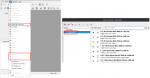
Click to Enlarge - Verify you have the 3D Pocket, 3D Surface, and Waterline operations shown. It is fine that they are disabled, they will become enabled once you have an active Job.
- From the CAM Workbench, select CAM from the top Menu, then Toolbit Library Manager.
- Verify you have a NibblerBOT library and available toolbits as shown on the right. ** This library is updated periodically, you are not looking for an exact match, just similar tooling.
- Once FreeCAD has restarted, go to the CAM workbench.


The KM-FreeCAD Addon should now be installed and your Toolbit Library should now stay synced with the NibblerBOT physical tool library.
If you have ever had a version earlier than 1.1.x installed you should work with @Billy on the initial installation of this Addon to ensure it has been configured properly.
Usage:
- Select the NibblerBOT post processor when exporting G-code.
- Use the provided job templates for quick setup.
- Tool definitions and shapes are available under the Tools directory.
Additional Addons
Besides the KM-FreeCAD Addon noted above, there are many other Addons that you may find helpful. Some of the ones that we've discussed in previous CAM Jam sessions are listed below.
- OpenTheme - available directly from Addon Manager - Light and Dark themes for FreeCAD.
- SaveAndRestore - available directly from Addon Manager - A simple addon to save and restore your settings.
- SaveUtils - custom repository - Adds 'Save As with Timestamp' and 'Save As Increment' to File menu.
Feeds & Speeds
While there are various tools and calculators to give you a starting point, nothing beats real world experience. With that in mind a table has been started to capture operator feedback from NibblerBOT doing operations on different types of woods and using the various bits available. Check for previous operations that may be similar to one you're considering and of course please add your own results to help us all out!! If you have a KM account you can log in and edit, no special permissions needed.
View/edit NibblerBOT Feeds & Speeds
////////////////////////////////////////////////////////////////////